
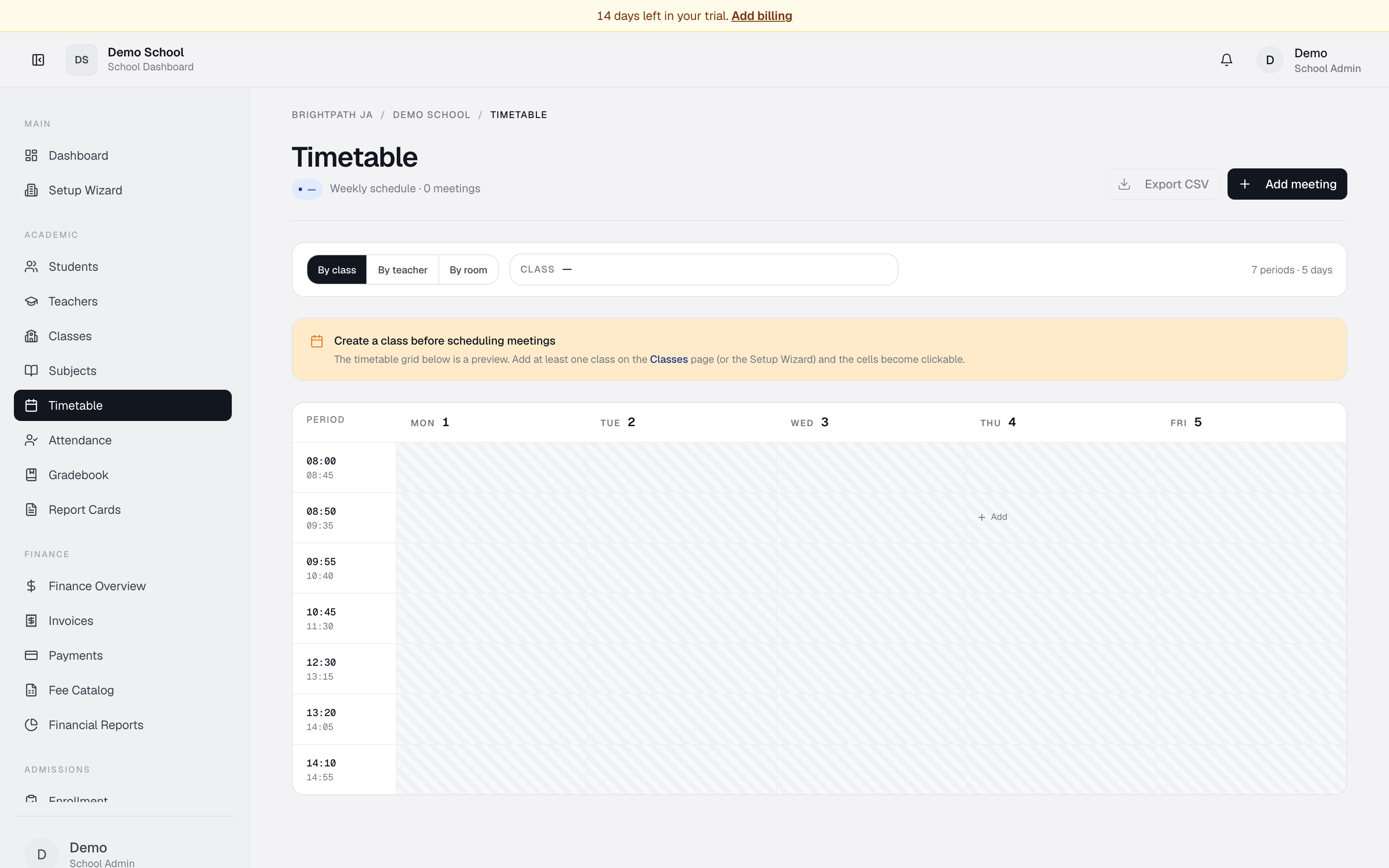
What it does
The Timetable displays your school's weekly schedule as a grid of time slots across the five school days (Monday–Friday). Each cell shows a class meeting with its subject, teacher, and location. Use All to see every class meeting in one grid (multiple meetings stack in the same period when they overlap). Filter down with By class, By teacher, or By room. Admins can click any time slot to create or edit a meeting, and drag meetings to reschedule them instantly.
Who uses it
- School Admin / Principal — create and manage the full school timetable.
- Teacher — view their assigned classes and meeting times (read-only).
- Student — view the timetable for their enrolled classes.
Common tasks
View the timetable
The default view is All, which shows the full school timetable. When several classes meet in the same period, each appears as a stacked card in that cell. To focus on one class, teacher, or room, switch to By class, By teacher, or By room and pick from the dropdown.
A Subject legend at the bottom identifies each subject by colour.
Add a new meeting (admin only)
- Click Add meeting in the top right, or click any empty time slot in the grid.
- In the dialog, select class, day, start time, end time.
- Click Save to create the meeting.
Edit a meeting (admin only)
Click the meeting cell to open the edit dialog. Change class, day, or time. Click Save.
Reschedule by dragging (admin only)
- Hover over a meeting — a drag icon appears in the top-right of the cell.
- Click and drag to a different time slot or day.
- Release to drop. The meeting moves instantly.
Export the timetable as CSV
- Select the view (All, By class, By teacher, or By room).
- Click Export CSV in the top right.
Cancel a meeting
Edit the meeting, check Mark meeting as cancelled, and optionally enter a reason. The meeting appears faded in the grid.
Troubleshooting
- "Create a class before scheduling meetings" — go to Classes first and add at least one.
- Timetable looks blank — no meetings exist yet. A scaffold of typical periods (08:00–14:55) appears; click any cell to add the first.
- Can't edit or drag a meeting — only School Admins and Principals can. Other roles are read-only.
Limits & known issues
- The grid is a fixed five-day week (Monday–Friday). Weekends are not shown.
- No conflict detection. Two classes can be assigned to the same teacher or room at the same time; verify manually.
- Cancelled meetings appear faded (40% opacity).