
What it does
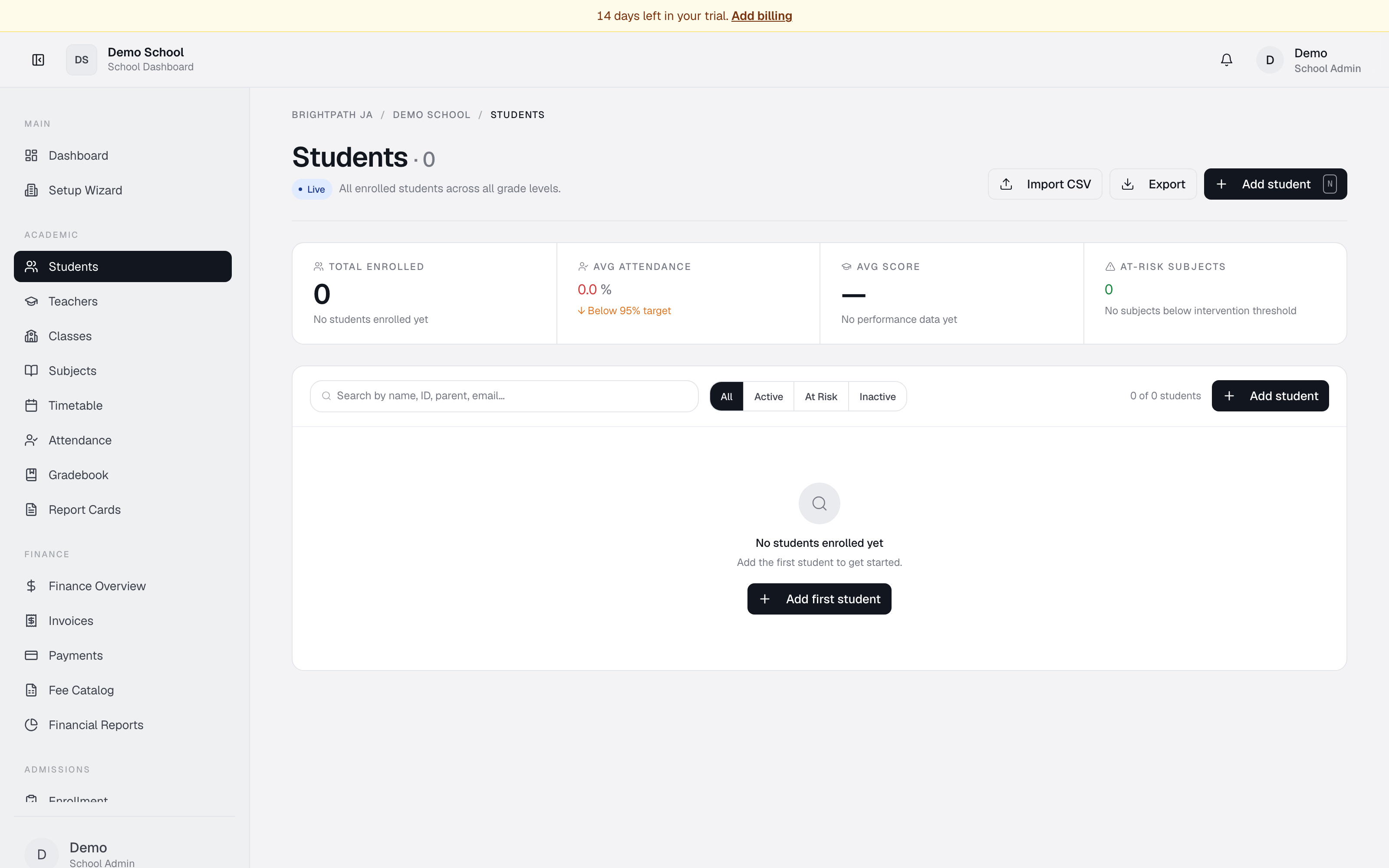
The Students page is the central hub for managing all enrolled students across your school. You can add new students, edit their details, view attendance rates and academic performance at a glance, and search or filter the full roster.
Who uses it
- Principal / School Admin — monitor total enrollment, attendance trends, and at-risk students.
- Registrar — add and edit student records; manage admission numbers, grade assignments, and emergency contacts.
- Counselor — view individual student details to support pastoral care and intervention planning.
- Bursar — check enrollment numbers for invoicing; track student status changes.
- Parent — views their own child's record via the Parent Portal, not this module.
Common tasks
View the student roster
The page opens with a searchable list of all enrolled students.
- Total enrolled shows the overall count and grade distribution.
- Avg attendance shows the school-wide attendance percentage (green ≥95%, orange 88–95%, red <88%).
- Avg score shows mean academic performance across all subjects.
- At-risk subjects flags grade × subject combinations below the 60-point intervention threshold.
Invite a student by email
- On the Students list, click Invite student (or Invite by email in the table toolbar).
- Enter the student’s email and optional name, grade, or admission number.
- Click Send invitation. BrightPath creates the student record and emails a portal sign-in link (via Resend).
Use this when the student should set up their own account instead of you entering every field manually.
Add a new student (manual entry)
- Click Add student in the top right (or Enter details manually when the roster is empty).
- Fill in the form:
- First name and Last name (required).
- Admission no (optional; auto-generated if left blank).
- Date of birth, Gender, Grade level (must be configured in Setup Wizard first).
- Address, Emergency contact, Medical notes (optional).
- Status (Active, Inactive, Graduated, or Withdrawn).
- Click Create Student. The student appears at the top of the list.
Edit a student's details
- Find the student via search or scroll.
- Click the student's card or name to open the detail view.
- Click Edit (pencil icon).
- Update any field and click Update Student.
Search for a student
Type the student's first name, last name, or admission number into the search field. Results filter as you type. Click X to clear.
Export student data
- Export — download the roster as a CSV file for use in Excel.
View a student's full record
Click on a student's name or card. The detail panel shows full profile, enrollment status, attendance history, and academic performance summary.
Identify at-risk students
The At-risk subjects card highlights students with grades below 60 in any subject. Click it to view details and plan intervention in Gradebook.
Troubleshooting
- "No students enrolled yet" — click Add student to create the first record.
- "Avg attendance" shows "—" — no attendance data recorded. Use the Attendance module first.
- "Avg score" shows "—" — no grades have been entered yet.
- Student doesn't appear after adding — confirm their status is Active. Inactive or withdrawn students may be filtered out by default.
Limits & known issues
- Grade levels must exist first. Students can only be assigned to grade levels created in Setup Wizard.
- Admission numbers — if left blank, the system generates one. Once set, it cannot be changed.