
What it does
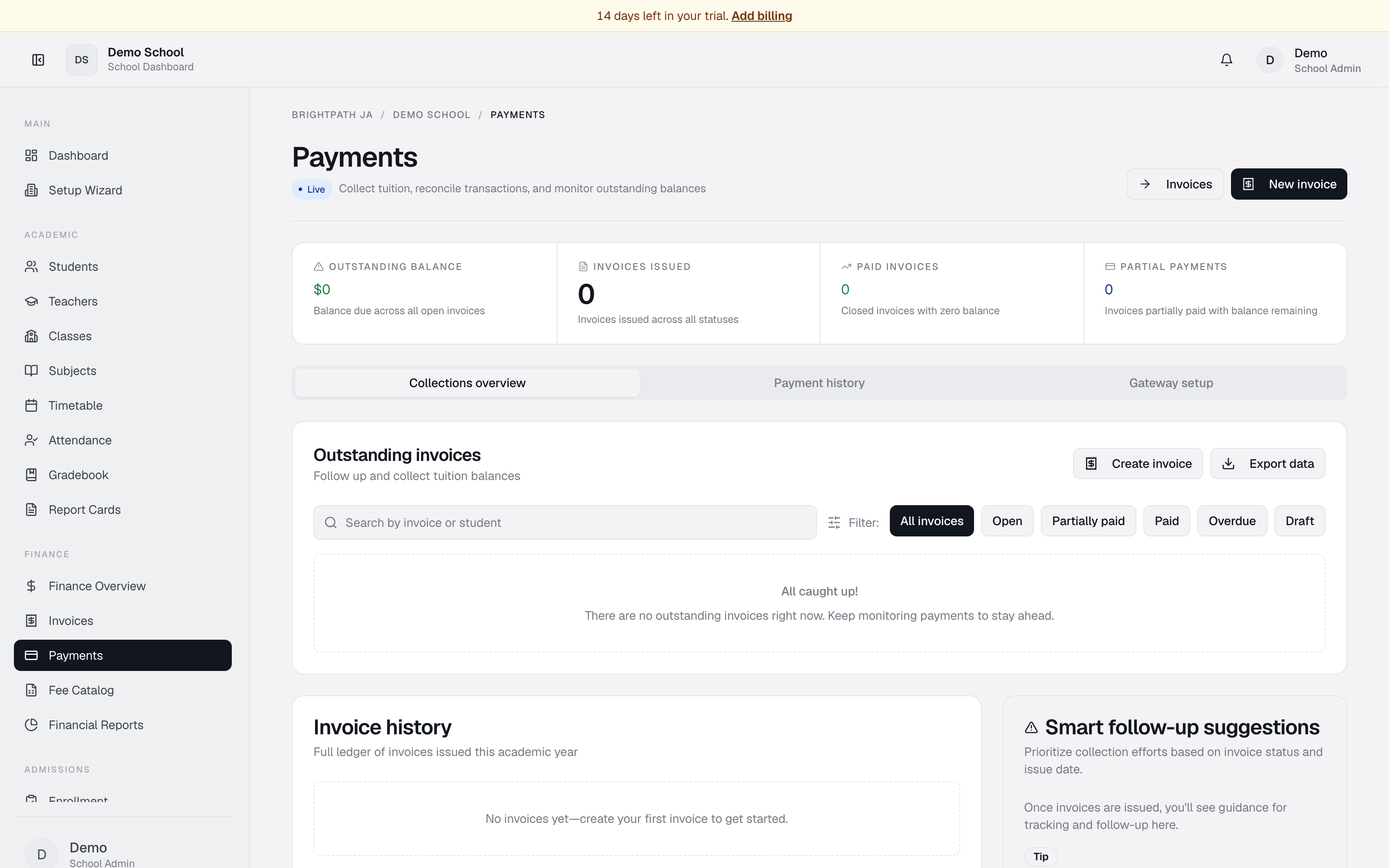
The Payments module is your command centre for tuition collection. It shows outstanding invoices, lets you record manual payments (cheque, bank transfer, cash) or initiate online card payments via PowerTranz, and displays the full payment ledger and history.
Who uses it
- Bursar — primary user. Records payments, manages outstanding invoices, creates invoices, and processes online payments.
- Principal / School Admin — reviews payment status and collection progress.
- Parent — views their child's payment history and initiates online payments via the Parent Portal.
- Auditor — verifies payment records and reconciliation.
Common tasks
Check outstanding invoices and collection metrics
The four summary cards show: Outstanding balance, Invoices issued, Paid invoices, Partial payments. Below, the Outstanding invoices section lists all unpaid and partially paid invoices.
Search and filter outstanding invoices
- Search — student name or invoice number.
- Status buttons — All / Open / Partially paid / Paid / Overdue / Draft.
- Smart suggestions — the system suggests which invoices to prioritize for collection.
Record a manual payment
- Click Add payment next to an outstanding invoice, or open the invoice and click Record payment.
- In the dialog enter student/invoice, amount, method (cheque, bank transfer, cash), and date received.
- Click Save. The invoice balance updates.
Process an online payment via PowerTranz
- Click Pay next to an invoice.
- A dialog confirms invoice number, amount, student, guardian.
- Click Proceed to payment — PowerTranz checkout opens.
- After the family enters their card, funds are matched to the invoice automatically and recorded.
Create an invoice
- Click New invoice in the top right.
- Select student and guardian.
- Add fee items from the catalog (click to add several). Adjust amounts if needed.
- Set issue date and due date. Add optional notes.
- Click Create.
View payment history
Click the Payment history tab — every transaction (successful, pending, failed), searchable and exportable.
Set up PowerTranz (online card processing)
Click the Gateway setup tab to see integration status and next steps. Prerequisites:
- A configured PowerTranz merchant profile.
- FAC (First Atlantic Commerce) credentials.
- Callback URL registered with the gateway.
Contact BrightPath support to activate the gateway for your school.
Troubleshooting
- PowerTranz payment not showing in history — card payments can take 2–5 minutes to appear. Refresh.
- Can't see an outstanding invoice — check the status filter; paid invoices are hidden from Outstanding by default.
- Payment amount doesn't match invoice total — partial payments are allowed; check the balance_due field.
- Can't create an invoice — make sure at least one fee item exists in Fee Catalog.
- PowerTranz checkout fails — verify the merchant account is active. Contact support if persistent.
Limits & known issues
- PowerTranz requires active merchant setup; manual recording works without it.
- No bulk invoice creation yet.
- Refunds must be processed through your payment processor or recorded as a credit note manually.